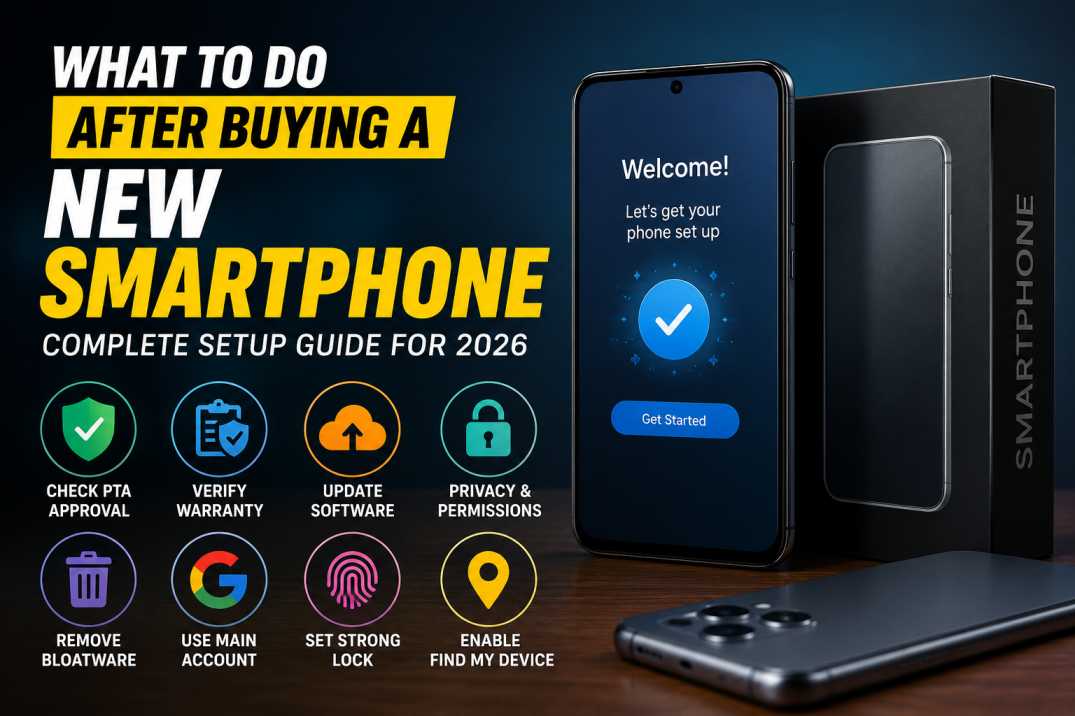
Buying a new smartphone is exciting, but what you do during the first few minutes after turning it on can make a big difference.
Many users simply insert their SIM card, sign in to their accounts, and start using the phone without checking important settings.
This can lead to privacy issues, shorter warranty coverage, unnecessary battery drain, and even security risks.
Whether you've purchased an Android phone or an iPhone, this guide covers the essential steps you should take immediately after unboxing your new device.
1. Verify That Your Phone Is Genuine and PTA Approved
If you're buying a smartphone in Pakistan, your first priority should be verifying that the device is genuinely PTA approved.
Don't rely solely on the PTA sticker on the box. Instead:
Find the IMEI number printed on the phone's packaging.
Check the IMEI through the official PTA DIRBS portal.
Complete the phone setup.
Dial *#06# and compare the IMEI shown on the phone with the one printed on the box.
If the IMEI numbers don't match, the phone may have been repackaged or tampered with.
2. Check the Warranty Activation Date
Many smartphone brands now provide digital warranties that start from the device's activation date instead of a physical warranty card.
Before leaving the shop or during your first setup:
Visit the official warranty check page of your phone's manufacturer.
Enter your IMEI number.
Confirm that the warranty starts from your purchase date.
If the phone was activated weeks or months before you bought it, contact the seller immediately. An already activated device may reduce your warranty period significantly.
3. Install the Latest Software Update
Even brand-new phones often ship with older firmware.
Before installing your apps:
Connect to Wi-Fi.
Go to Settings > Software Update.
Install any available updates.
Software updates usually include:
Security patches
Bug fixes
Camera improvements
Battery optimizations
Performance enhancements
Starting with the latest software helps prevent common issues from day one.
4. Review Privacy Permissions Carefully
During setup, many manufacturers ask you to participate in user experience or diagnostic programs.
While these options help companies improve their software, they also collect usage data from your device.
Review each permission carefully and disable any optional data collection features if you prefer greater privacy.
You can always enable these options later if you change your mind.
5. Avoid Installing Unnecessary Preloaded Apps
Many phones offer optional games, promotional apps, or recommended software during setup.
Unless you specifically need them, skip these installations.
Benefits include:
More available storage
Better battery life
Less background activity
Fewer notifications
Improved overall performance
After setup, uninstall any apps you don't plan to use.
6. Sign In With Your Main Google or Apple Account
Avoid creating a temporary account just for the new phone.
Using your primary account allows you to:
Restore backups
Sync contacts
Recover photos
Locate your phone if it's lost
Reset your password more easily
If you're creating a new account, make sure you use your real information and add a recovery phone number and email address.
7. Use a Strong Screen Lock
Your smartphone contains personal photos, financial apps, messages, and sensitive information.
Avoid simple PINs such as:
0000
1234
1111
Birth years
Instead, use:
A strong six-digit PIN
An alphanumeric password
Fingerprint authentication
Face unlock (where available)
A stronger lock significantly improves your device's security.
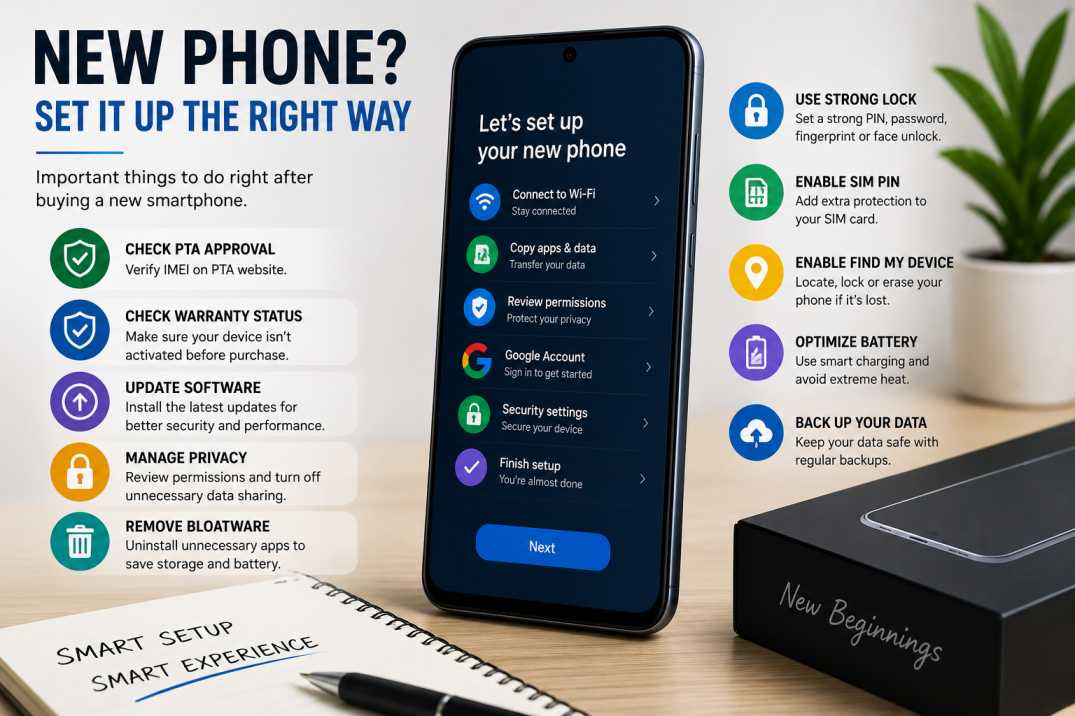
8. Enable SIM Card PIN Protection
Many people protect the phone but forget about the SIM card.
If someone removes your SIM and inserts it into another phone, they could receive:
Banking OTPs
Verification codes
Password reset messages
Enable the SIM PIN feature from your phone's security settings.
This adds an extra layer of protection if your device is ever stolen.
9. Turn On Find My Device
Losing a smartphone can be stressful, but modern devices include built-in tracking features.
Android users should enable Find My Device, while iPhone users should ensure Find My iPhone is active.
These features allow you to:
Locate your phone
Ring it remotely
Lock it
Display a contact message
Erase your data if necessary
Always verify that location services are enabled for the best tracking accuracy.
10. Configure Display Refresh Rate
Many smartphones now support refresh rates of 90Hz or 120Hz.
Choose the setting based on your needs:
60Hz
Better battery life
Ideal for casual users
Auto
Balanced performance and battery
120Hz
Smooth scrolling
Better gaming experience
Higher battery consumption
Most users will find the Auto setting offers the best balance.
11. Adjust Performance Mode
Several Android manufacturers include different performance profiles.
Common options include:
Battery Saver
Balanced Mode
High Performance
Choose the mode based on how you use your phone.
Heavy gamers may benefit from Performance Mode, while everyday users will typically get better battery life using Balanced or Battery Saver.
12. Manage Battery Health Properly
Modern lithium-ion batteries no longer require frequent full charge cycles for calibration.
For daily use, most experts recommend:
Avoid letting the battery stay at 0% for long periods.
Try to keep the charge between 20% and 80% whenever practical.
Avoid prolonged exposure to excessive heat while charging.
Use the original charger or a certified alternative.
Many smartphones also include battery protection features that automatically limit charging to improve long-term battery health. Enable these features if available.
13. Remove Unwanted Bloatware
Some manufacturers pre-install apps that you may never use.
These applications can:
Consume storage
Run in the background
Display advertisements
Reduce overall performance
Delete or disable unnecessary apps to keep your phone clean and responsive.
14. Back Up Your Data Regularly
A smartphone can be lost, stolen, or damaged at any time.
Enable automatic cloud backups for:
Photos
Contacts
Messages
App data
Device settings
Regular backups make switching phones much easier and reduce the risk of losing important information.
Final Thoughts
Setting up a new smartphone properly only takes a few minutes, but it can save you from future headaches.
By verifying your device, checking the warranty, installing updates, protecting your data, and removing unnecessary apps, you'll enjoy better security, longer battery life, and smoother performance.
Whether you've purchased a budget Android phone or the latest flagship, following these steps will help you get the best possible experience from your new device from day one.
Compare Smartphone Specs Instantly
Confused which flagship device is perfect for your needs? Use our automated, side-by-side spec comparison system to check benchmark hardware, battery capacities, and pricing models.
Start ComparingThanks for reading!
Join our community for the latest mobile tech news and expert smartphone comparisons.